Scoreboard
The first hour with WR Score.
From installing WR Score to the score on a hall screen, in about an hour.
You need: a PC with Windows 10 (22H2) or Windows 11, your WR Score account, and the setup file from it. A TV or a second screen helps for the last steps.

-
Step 1
Install WR Score.
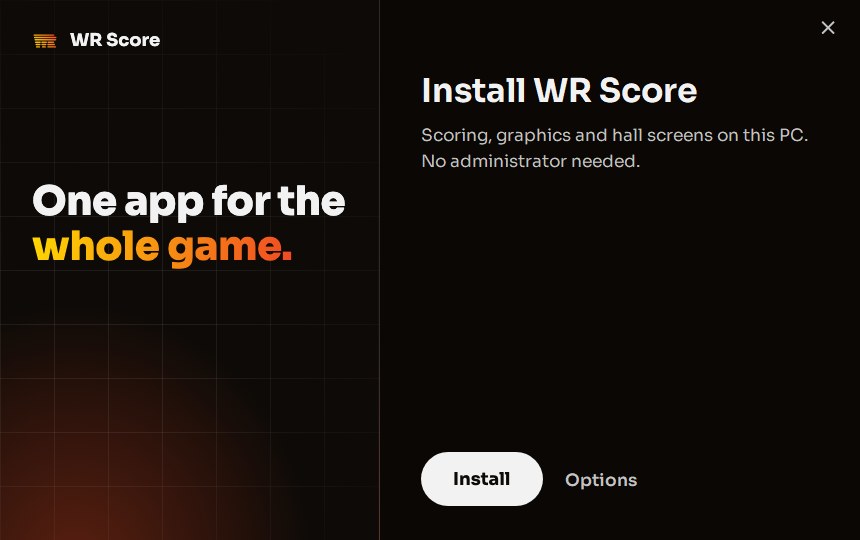
Double-click the setup file. If Windows says Windows protected your PC, press More info, then Run anyway: WR Score isn't signed for Windows yet during the beta. Do this only for the file you downloaded from your account page, never for one sent by e-mail or in a chat. Press Install. When it says WR Score is ready, press Open WR Score.
-
Step 2
Open WR Score.
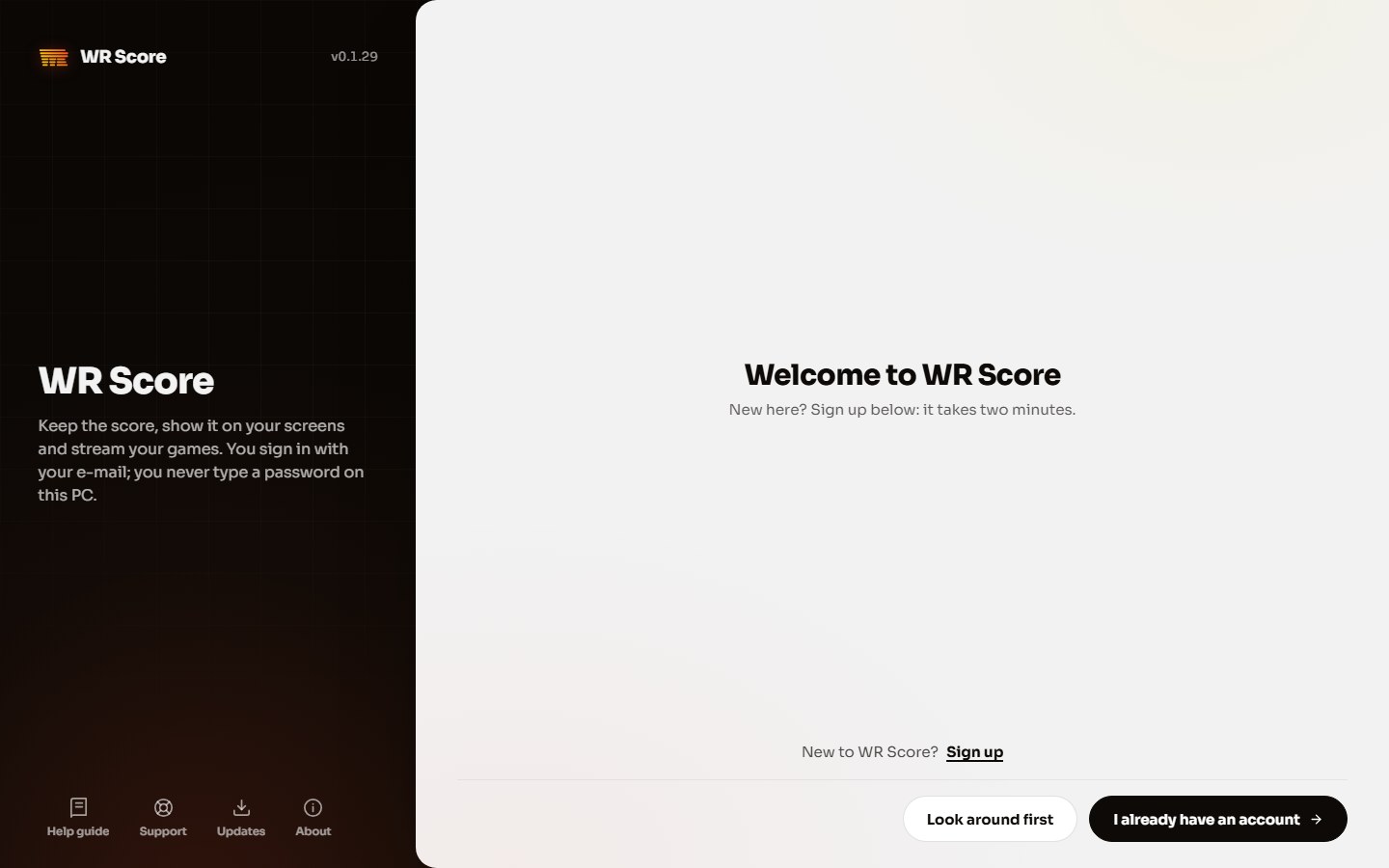
WR Score opens on Welcome to WR Score. New here? Press Sign up. Have an account? Press I already have an account, and sign in with your e-mail.
-
Step 3
Start the setup.
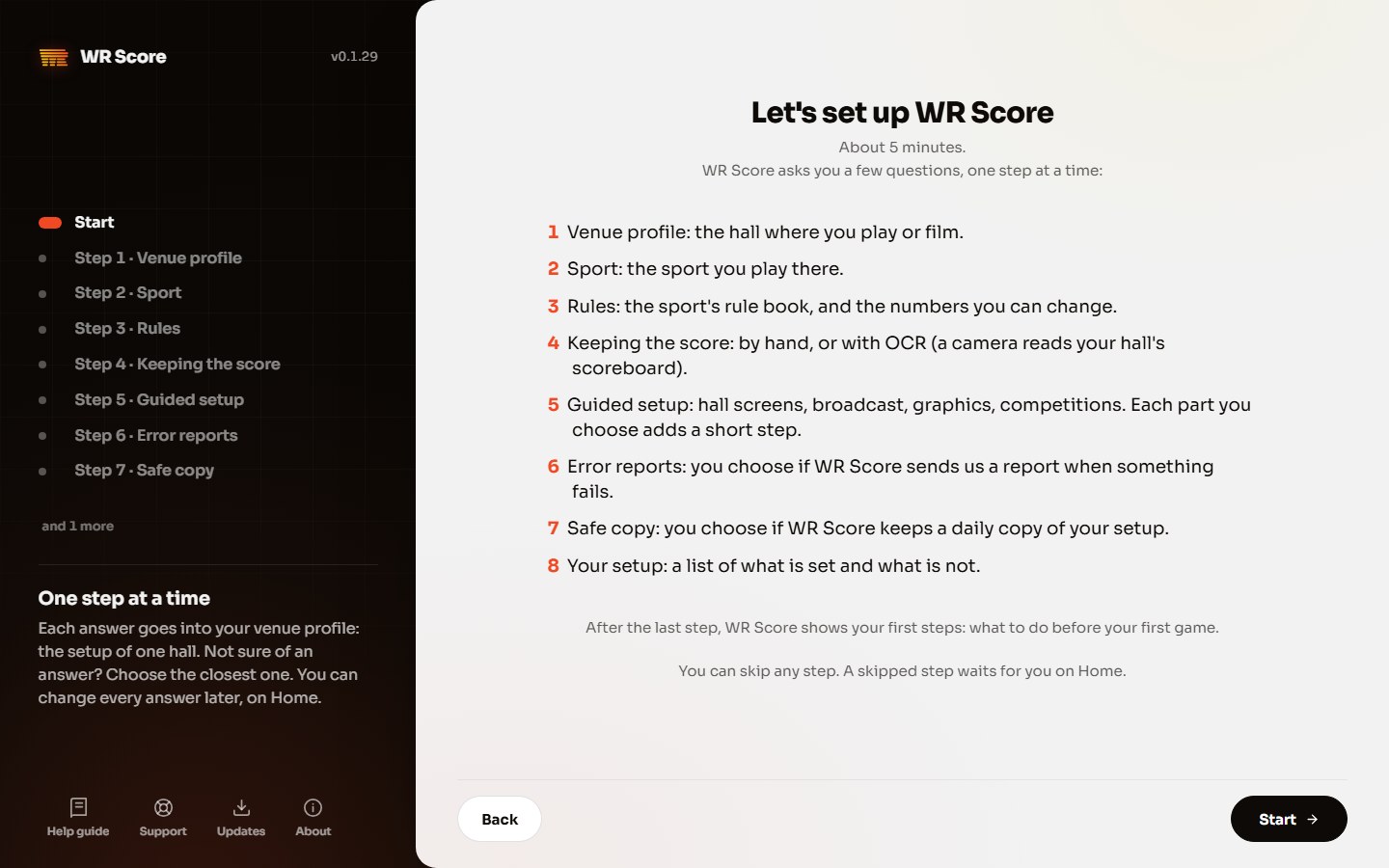
WR Score asks a few questions, one at a time. You can skip any step and come back to it later. Press Start.
-
Step 4
Your venue profile.
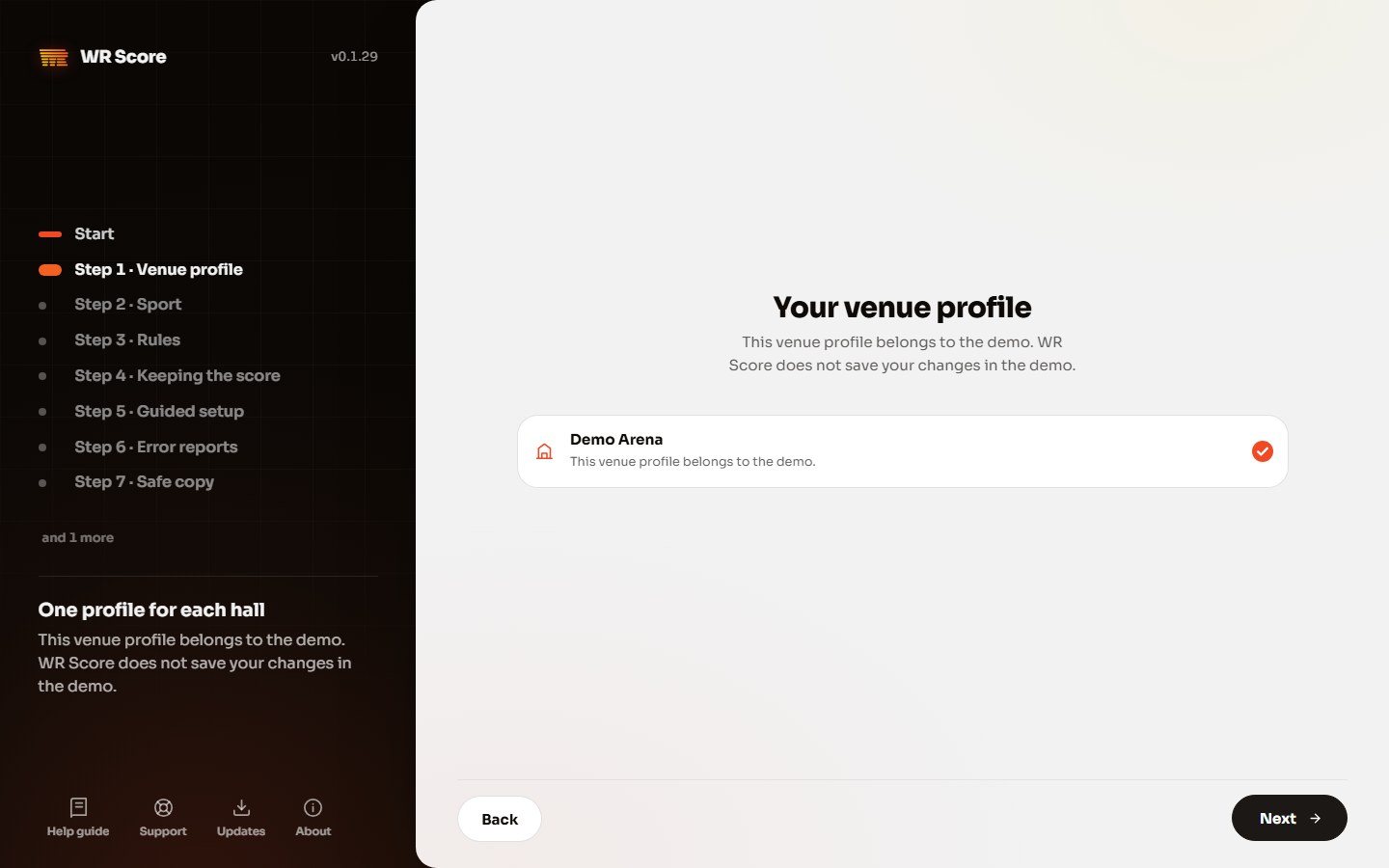
A venue profile holds the setup of one hall. Check its name and press Next.
-
Step 5
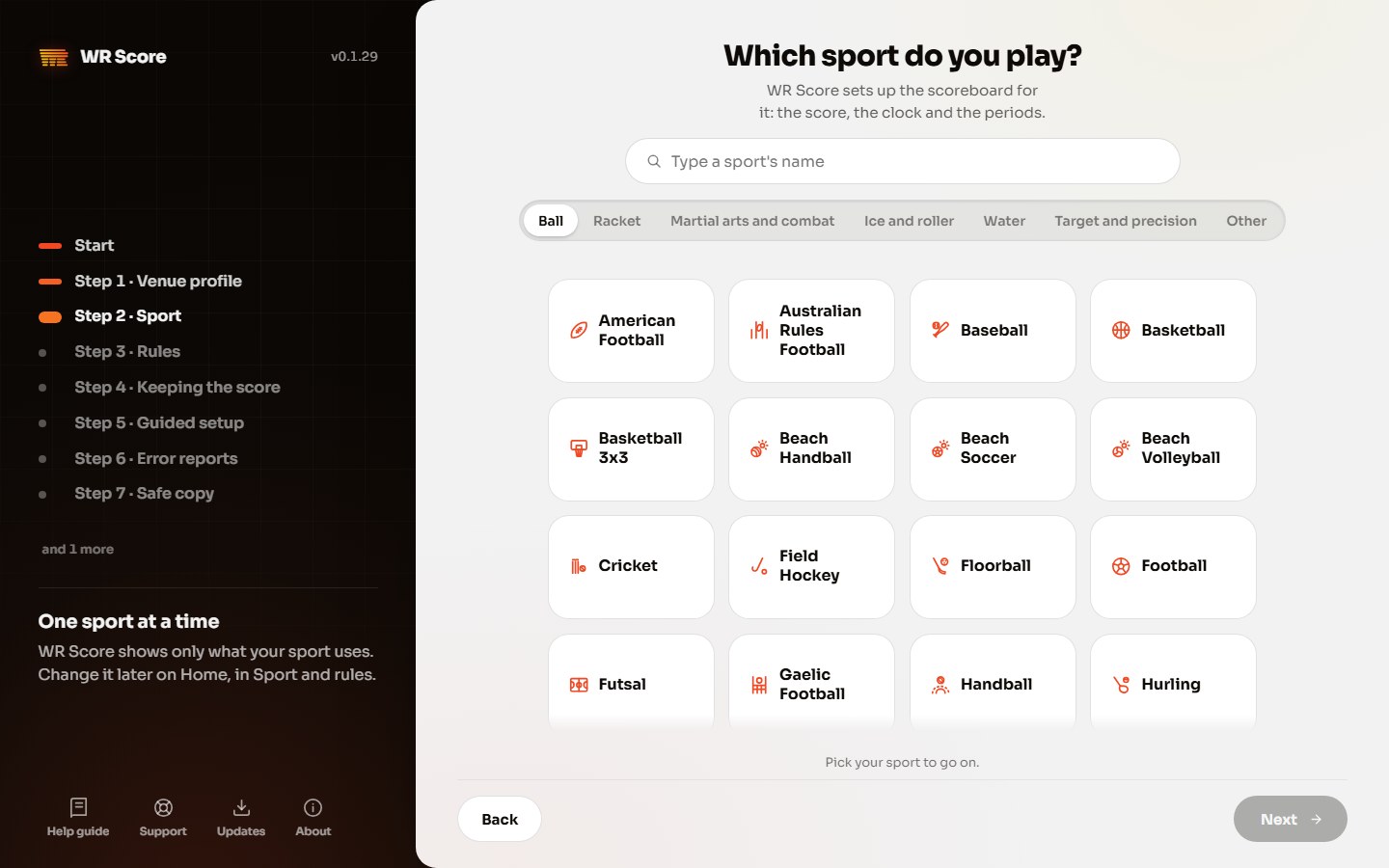
Pick your sport.
Pick your sport from the list. This guide uses Football; every sport works the same way.
-
Step 6
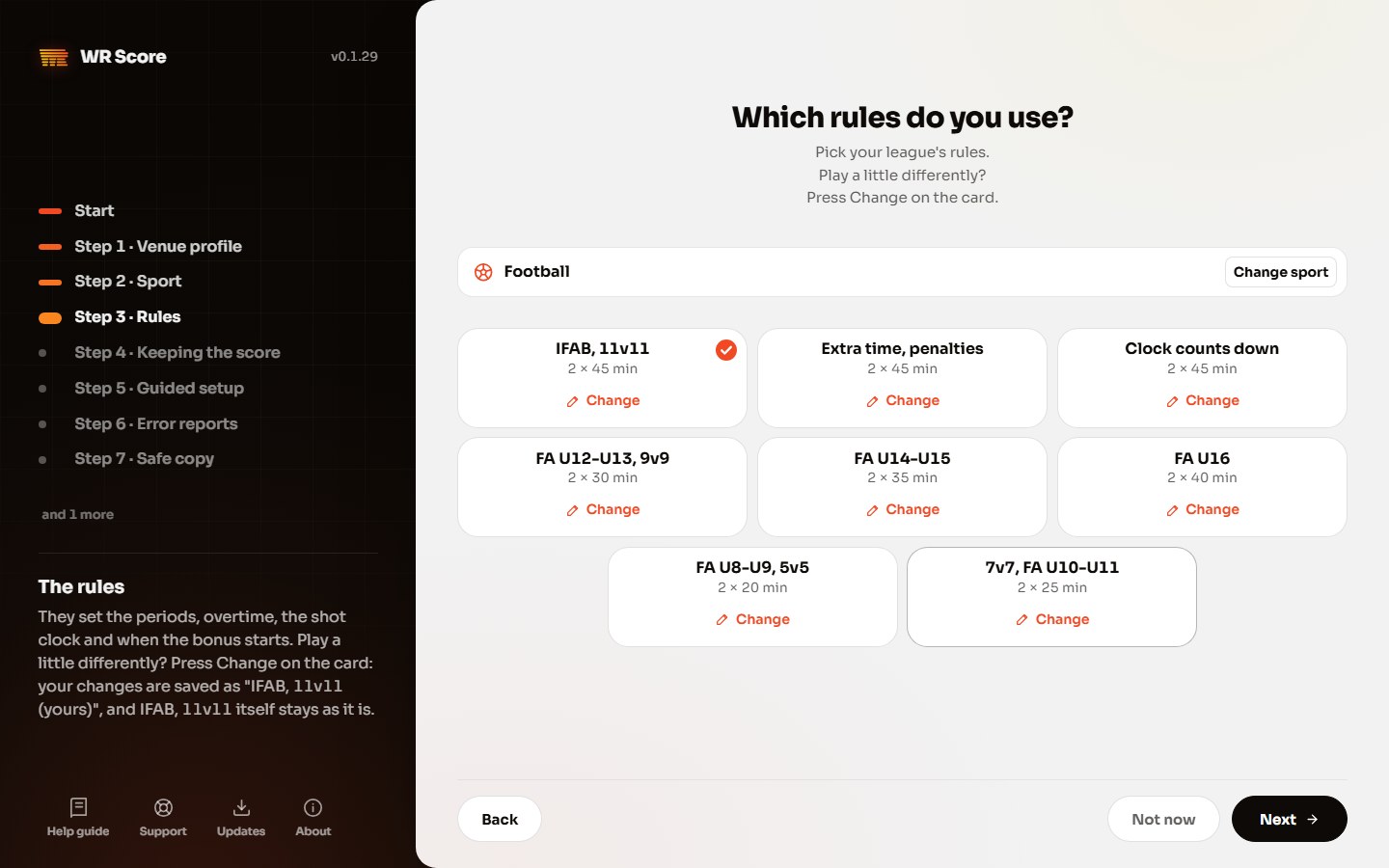
Check the rules.
WR Score fills in the rules of your sport. Press Change beside any you play differently, then Next.
-
Step 7
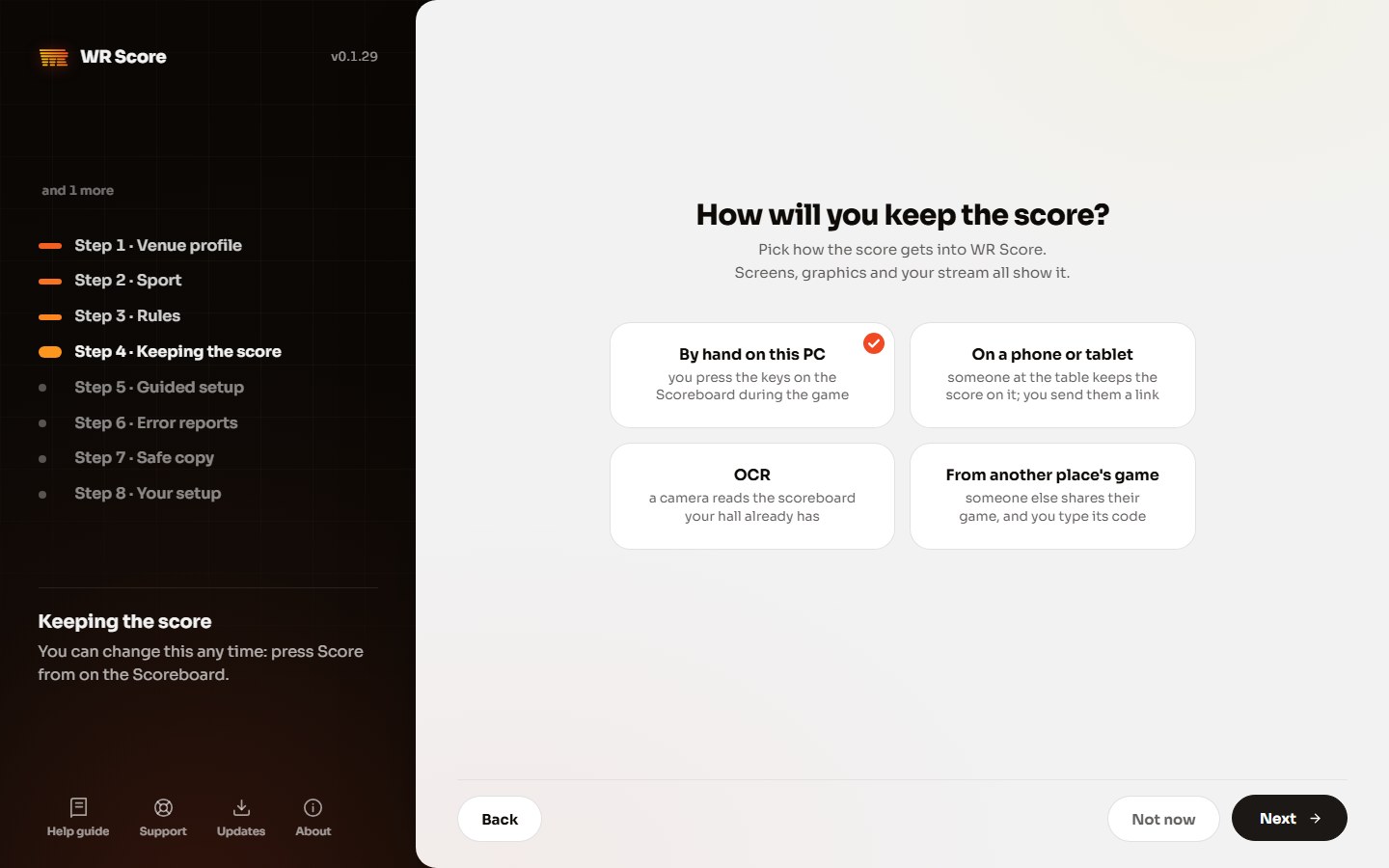
Choose how you keep the score.
Press By hand on this PC: you press the keys on the Scoreboard yourself. You can change this any time with Score from on the Scoreboard. Press Next.
-
Step 8
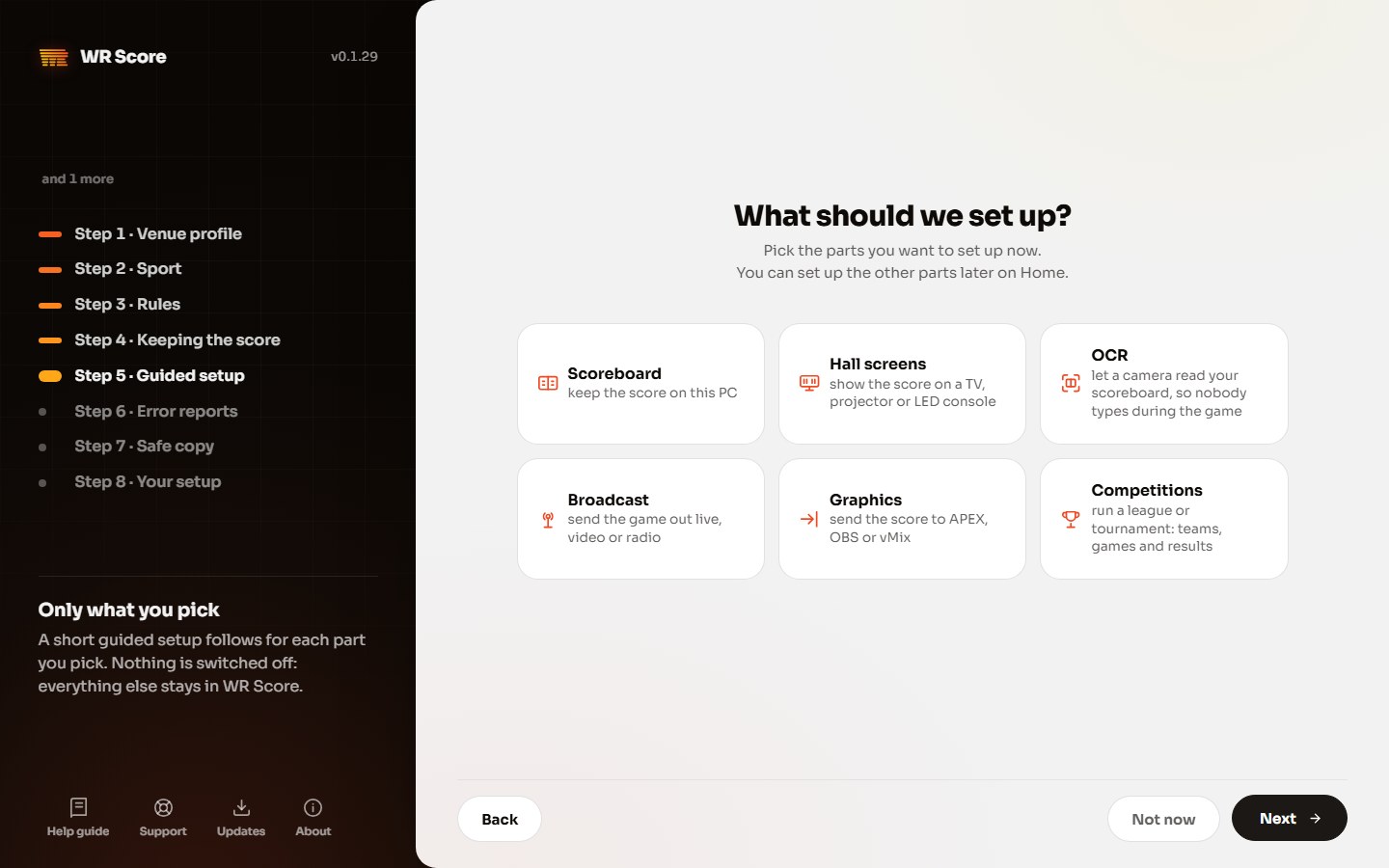
Choose what to set up now.
Pick the parts you want WR Score to walk you through, or none. Press Next.
-
Step 9
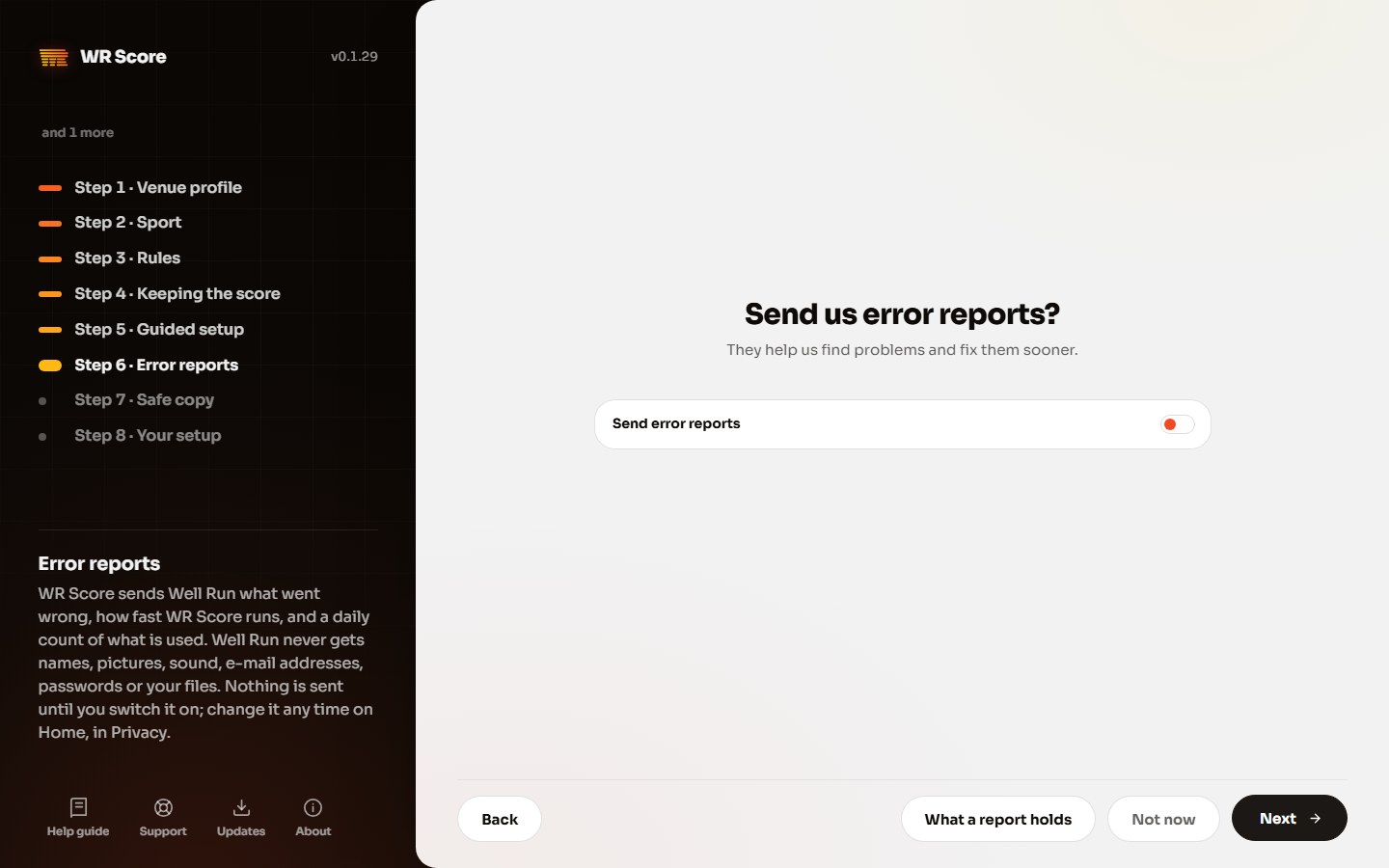
Error reports.
To help us find problems, switch on Send error reports. Nothing is sent until you switch it on, and you can change it any time on Home, in Privacy. Press Next, or Not now.
-
Step 10
A daily safe copy.
Switch on Copy my setup every day, and WR Score keeps an encrypted copy of your setup every day, ready for a new device. Press Continue.
-
Step 11
Check your setup.
WR Score lists what is set and what is not. Press Start using WR Score.
-
Step 12
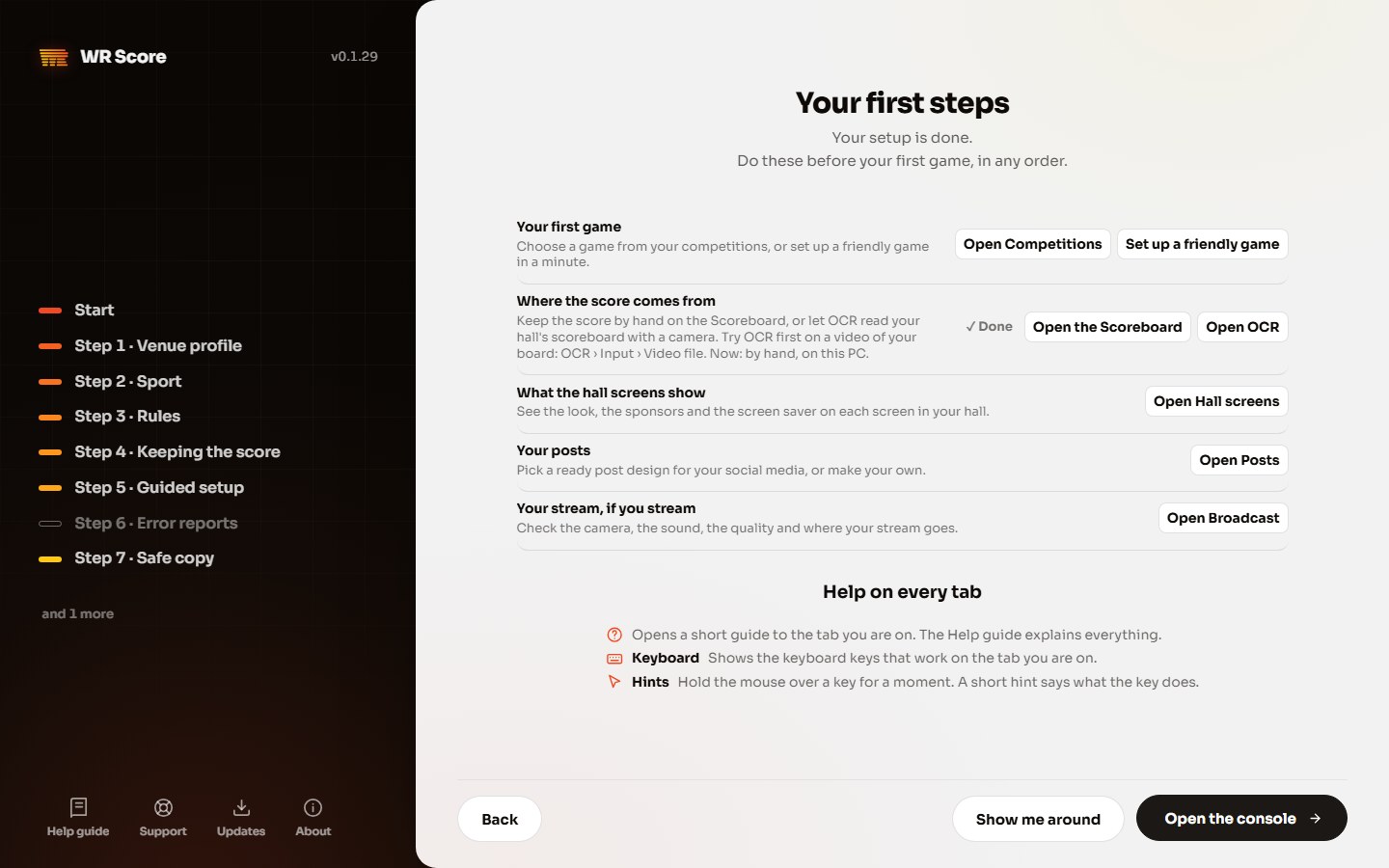
Your first steps.
This page lists what to do before your first game, in any order. Press Set up a friendly game.
-
Step 13
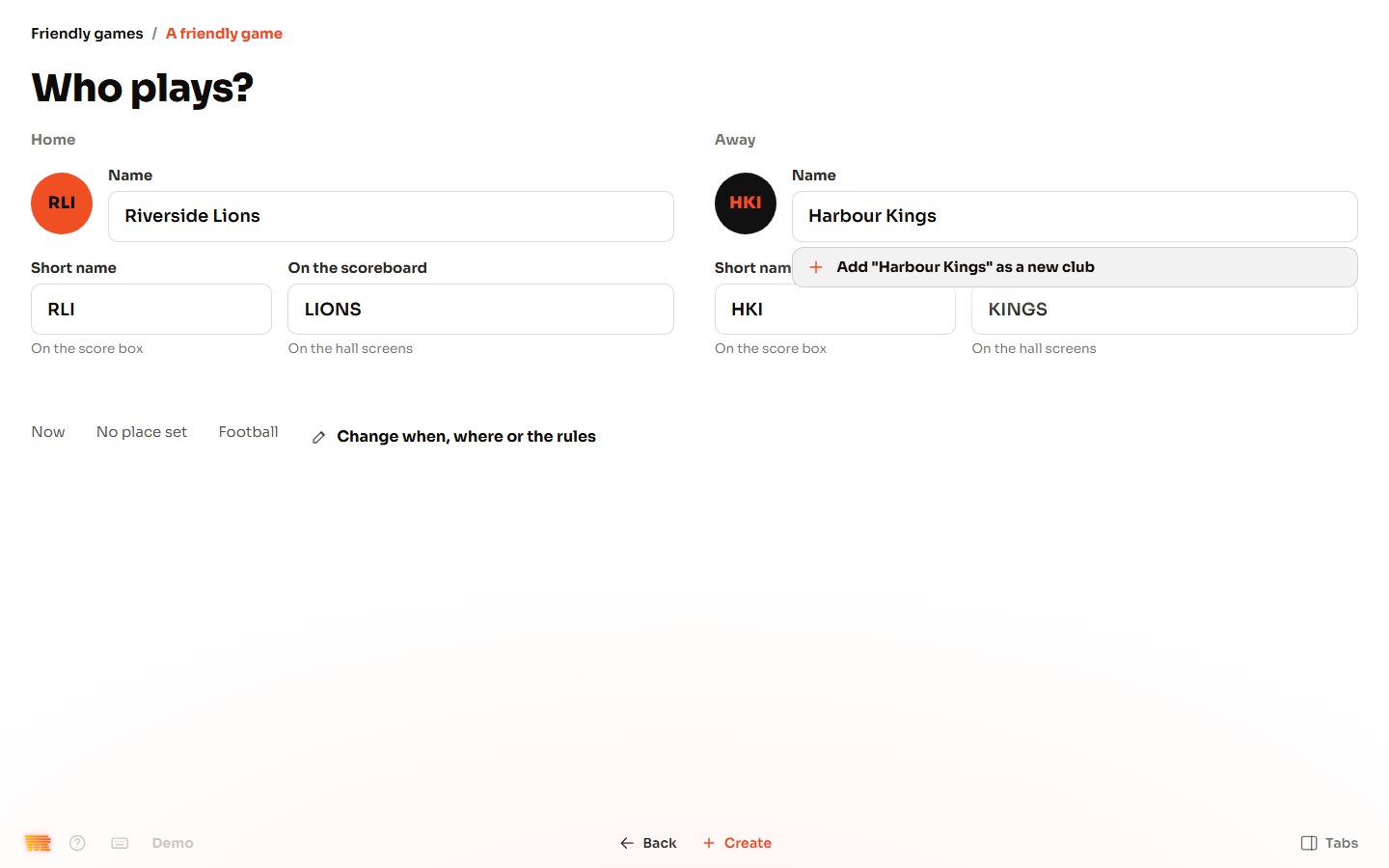
Name the two sides.
Type the home side's name and the away side's. The short names fill in by themselves; change them if you like. Press Create.
-
Step 14
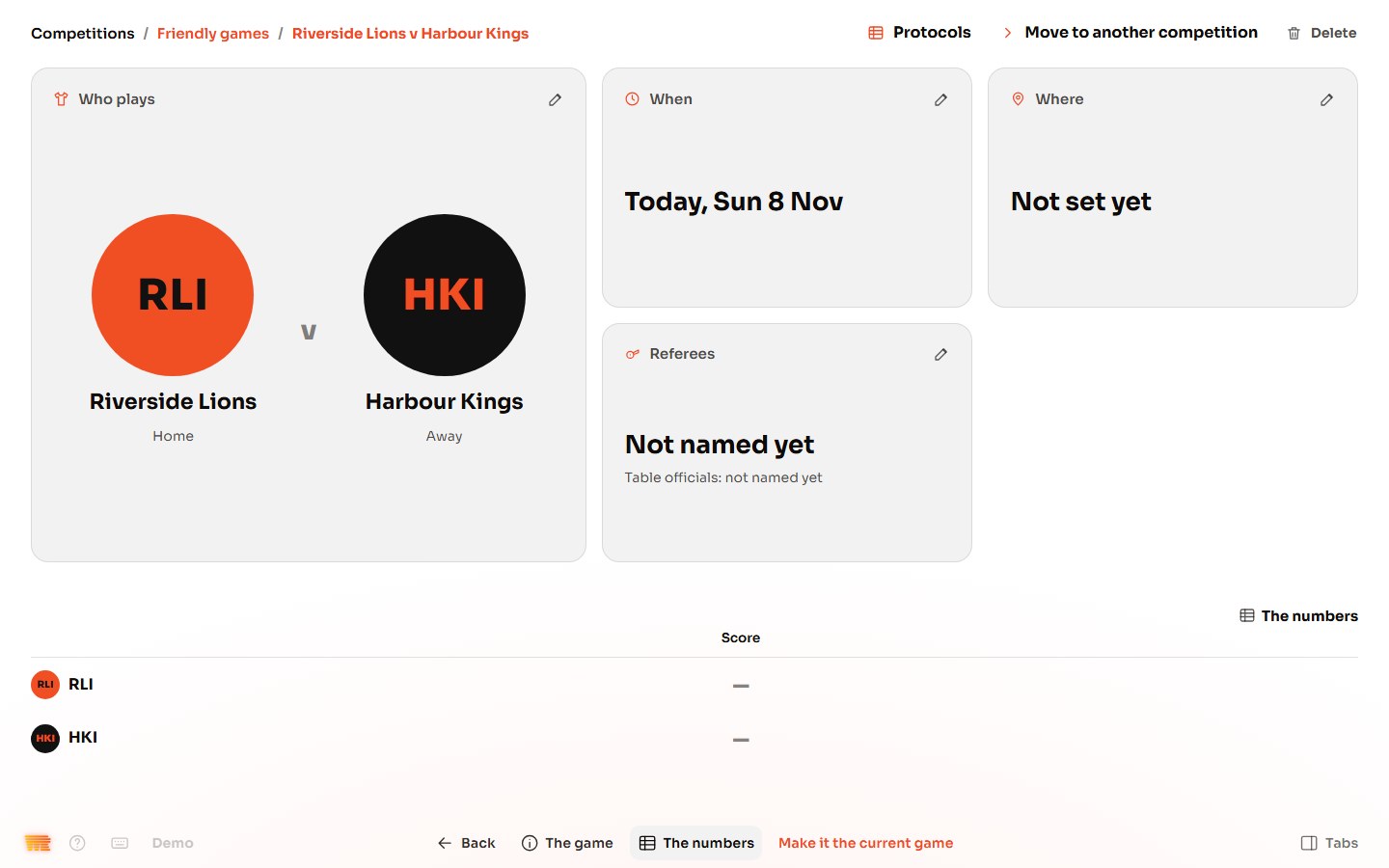
Make it the current game.
Press Make it the current game, so the Scoreboard and the hall screens show it.
-
Step 15
Keep the score.
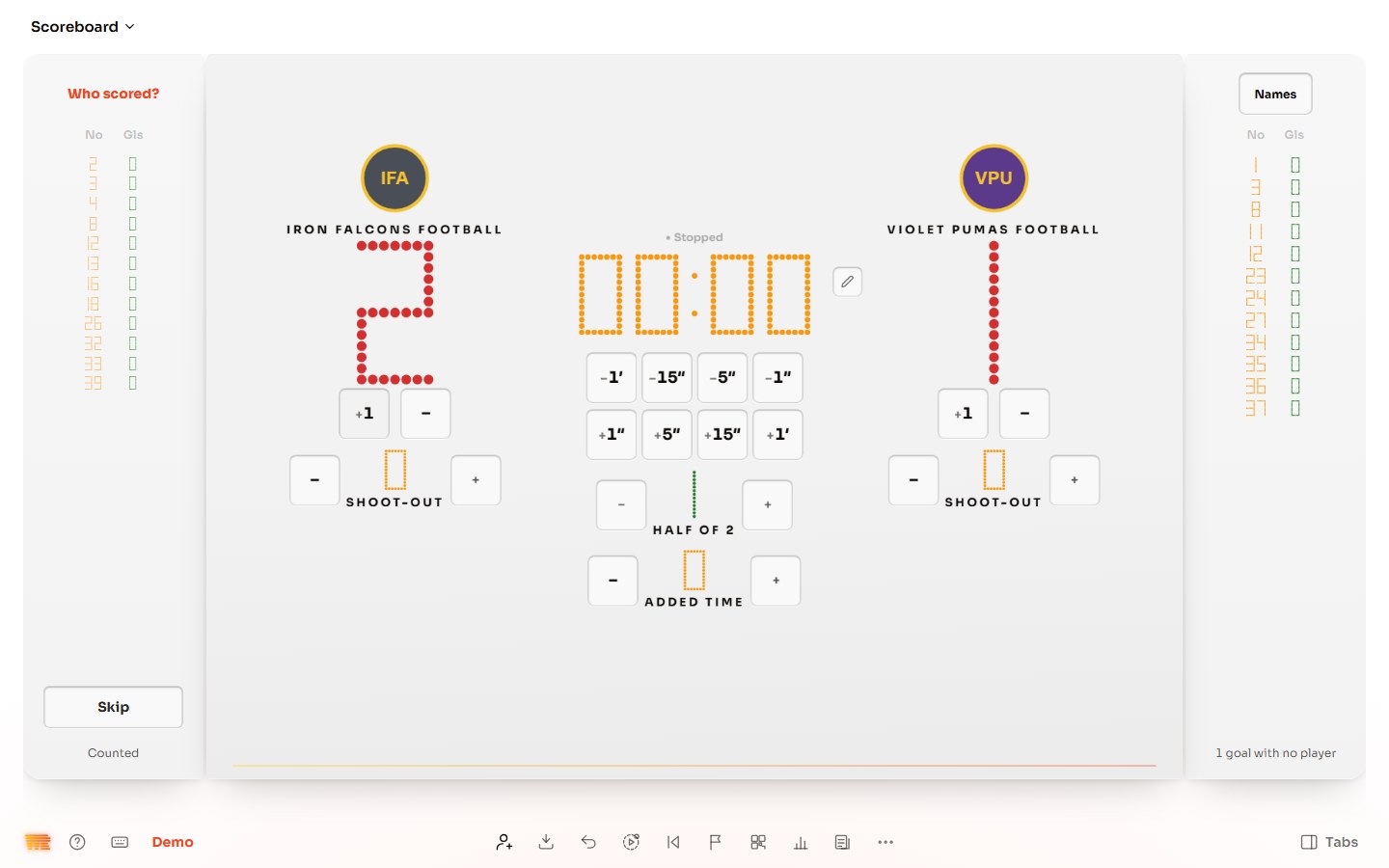
Open Scoreboard from the tabs on the right (press Tabs at the bottom right if they're hidden). Press +1 under a side when it scores. If WR Score asks Who scored?, pick the player's number, or press Skip.
-
Step 16
Start the clock.
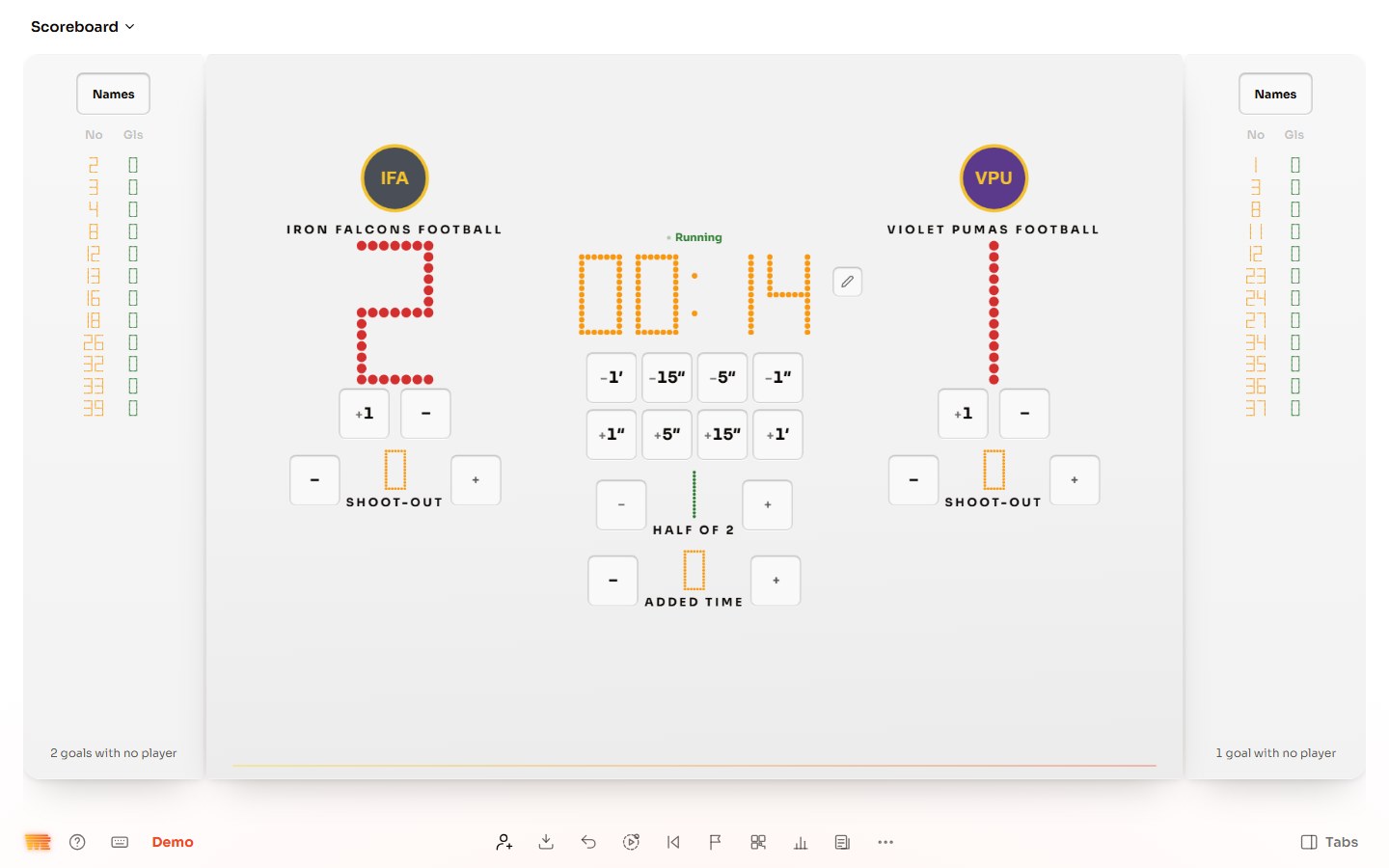
Press the clock to start it, and again to stop it. The keys under it move it by a second, five seconds, fifteen seconds or a minute.
-
Step 17
Open Hall screens.
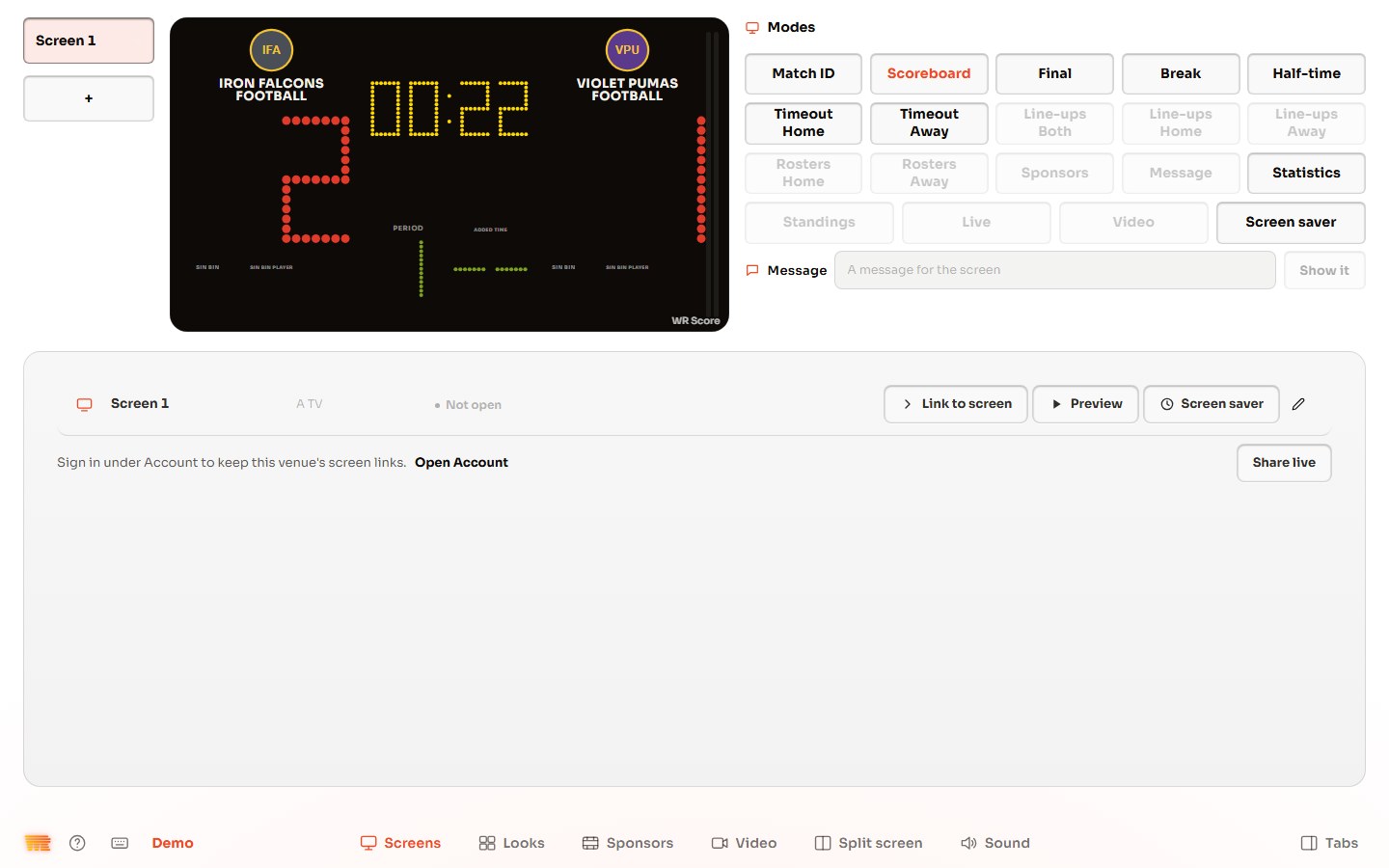
Open Hall screens from the tabs on the right. The picture at the top is what your hall sees. The Modes change what it shows: the score, half-time, the line-ups and more.
-
Step 18
Show it on a screen in the hall.
Press Link to screen, and open the link on the TV or the screen in the hall. It shows the score as it changes. To keep your screen links, sign in under Account.


