Hall screens
Hall screens to every destination.
One scoreboard on every screen in the hall: a TV or TV box, a second screen on this PC, OBS, vMix and another computer.
You need: WR Score open and signed in, and the screen you want to use.

-
Step 1
Open Hall screens.
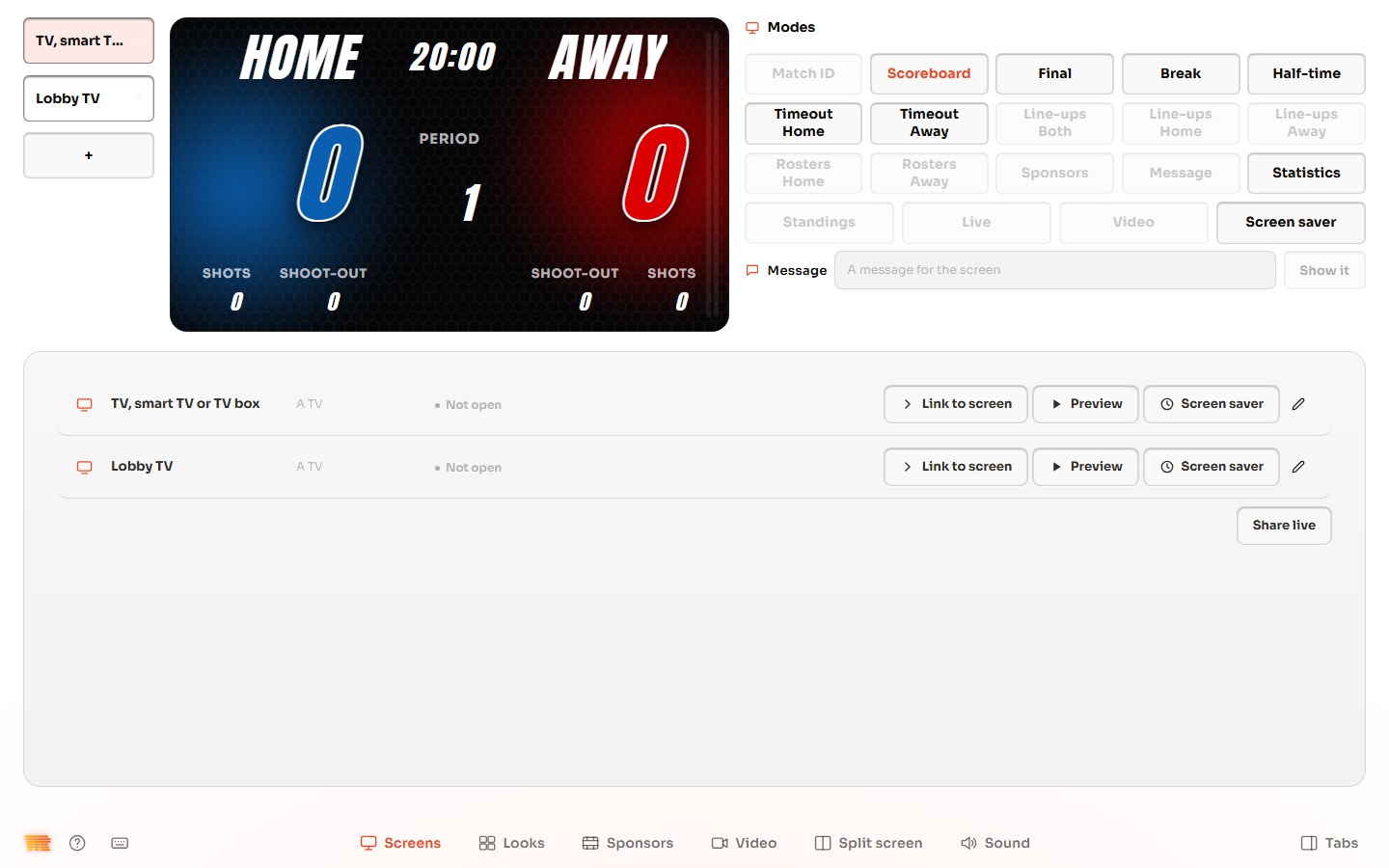
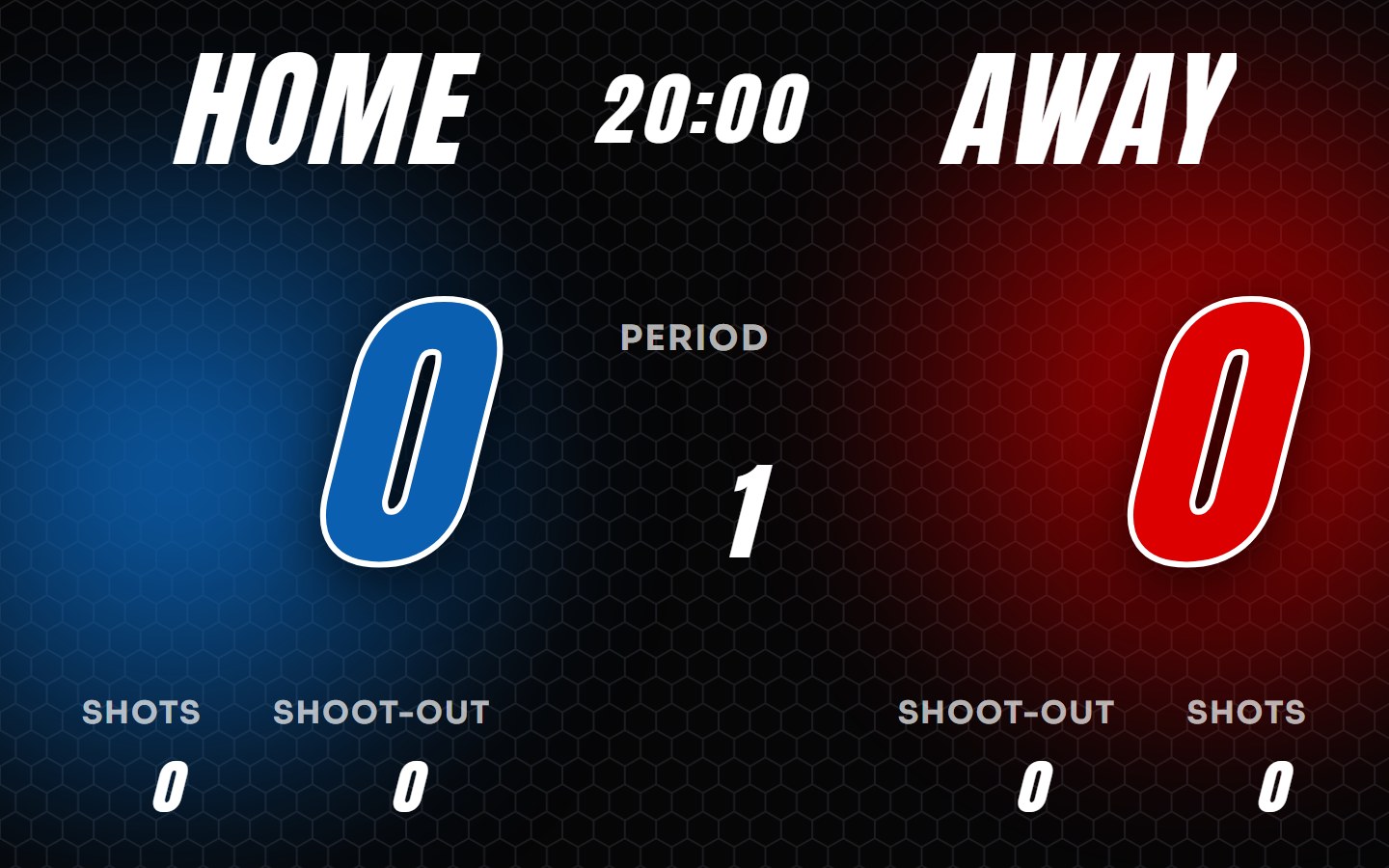
Open Hall screens from the tabs on the right (press Tabs at the bottom right if they're hidden). The picture at the top is what your screens show. The Modes change it: the score, half-time, the line-ups and more. Your screens are listed below.
-
Step 2
Add a screen.
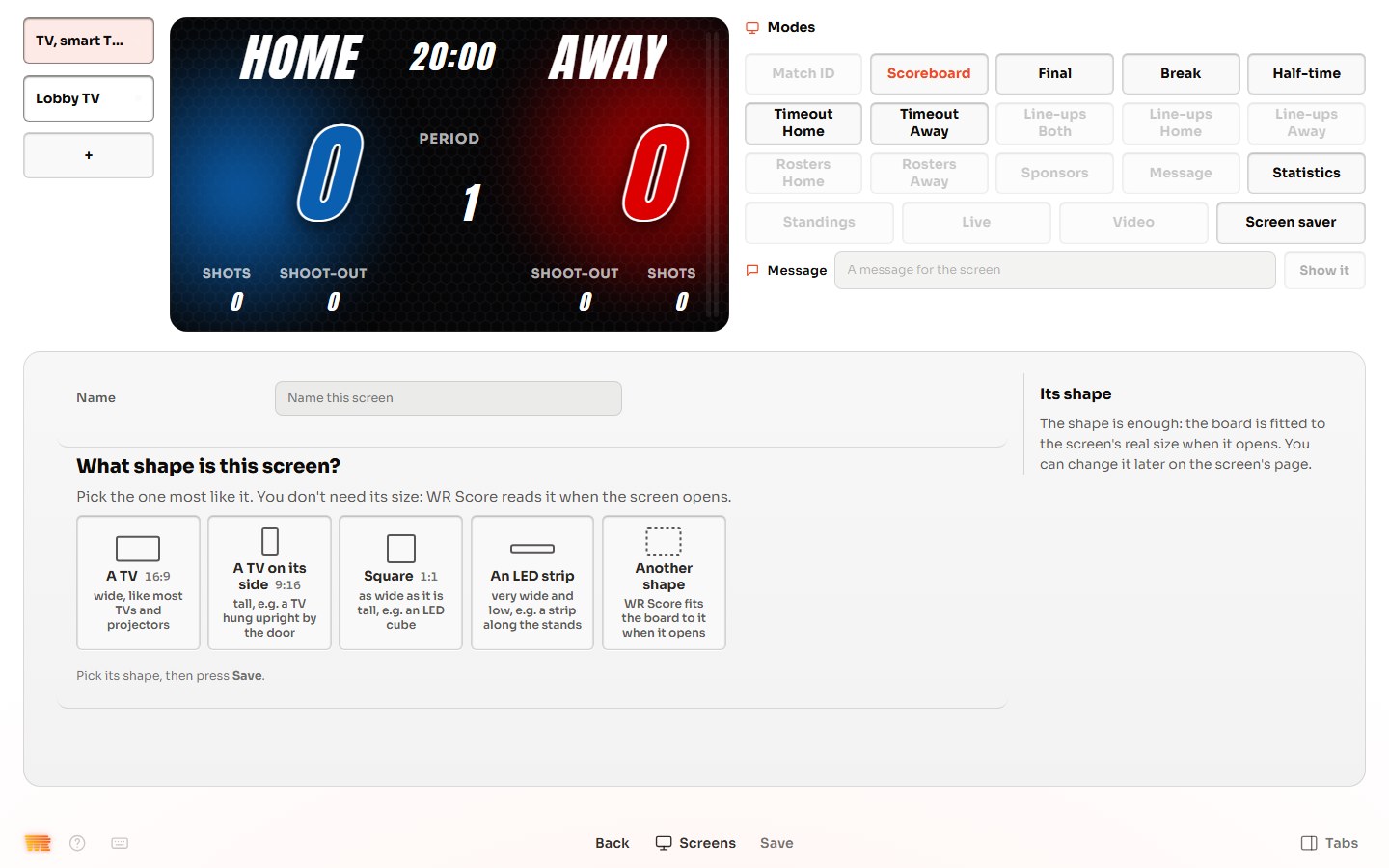
Press + at the top left. Give the screen a name, for example Lobby TV. Pick its shape: A TV, A TV on its side, Square, An LED strip or Another shape. Press Save.
-
Step 3
Your screens.
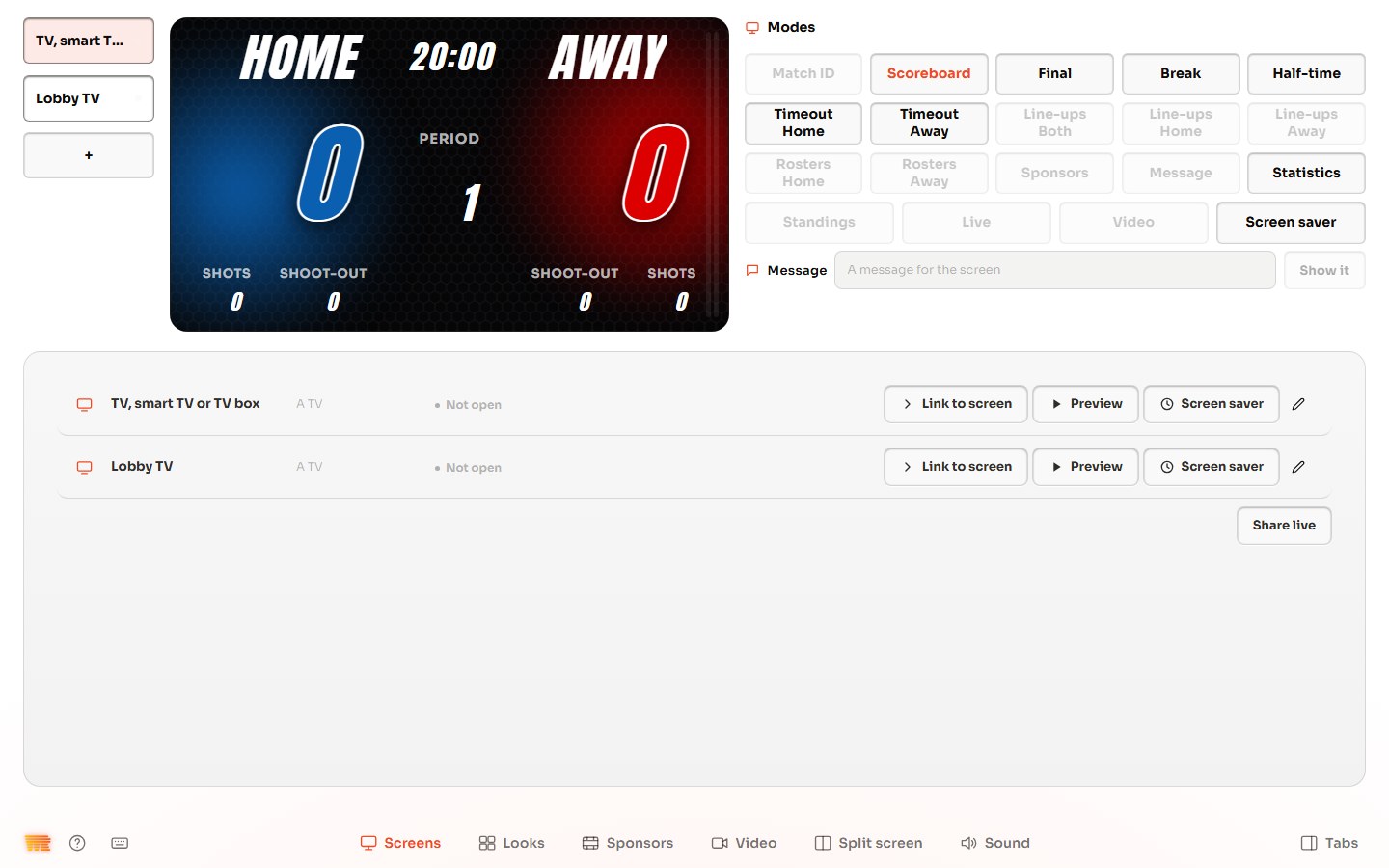
Each screen has its own line, with Link to screen, Preview and Screen saver. Not open changes when the screen shows the board.
-
Step 4
A TV, smart TV or TV box.
Press Link to screen on the screen's line. On the TV, open its browser and go to score.well.run/tv. Type the six letters, or scan the code with the TV's camera or a phone. Under How long this link works, choose Always, A number of hours or A number of days. Always keeps the link working until you change it: if the letters may have been seen by someone else, press Change link. Delete link stops it.
-
Step 5
A second screen on this PC, by cable.
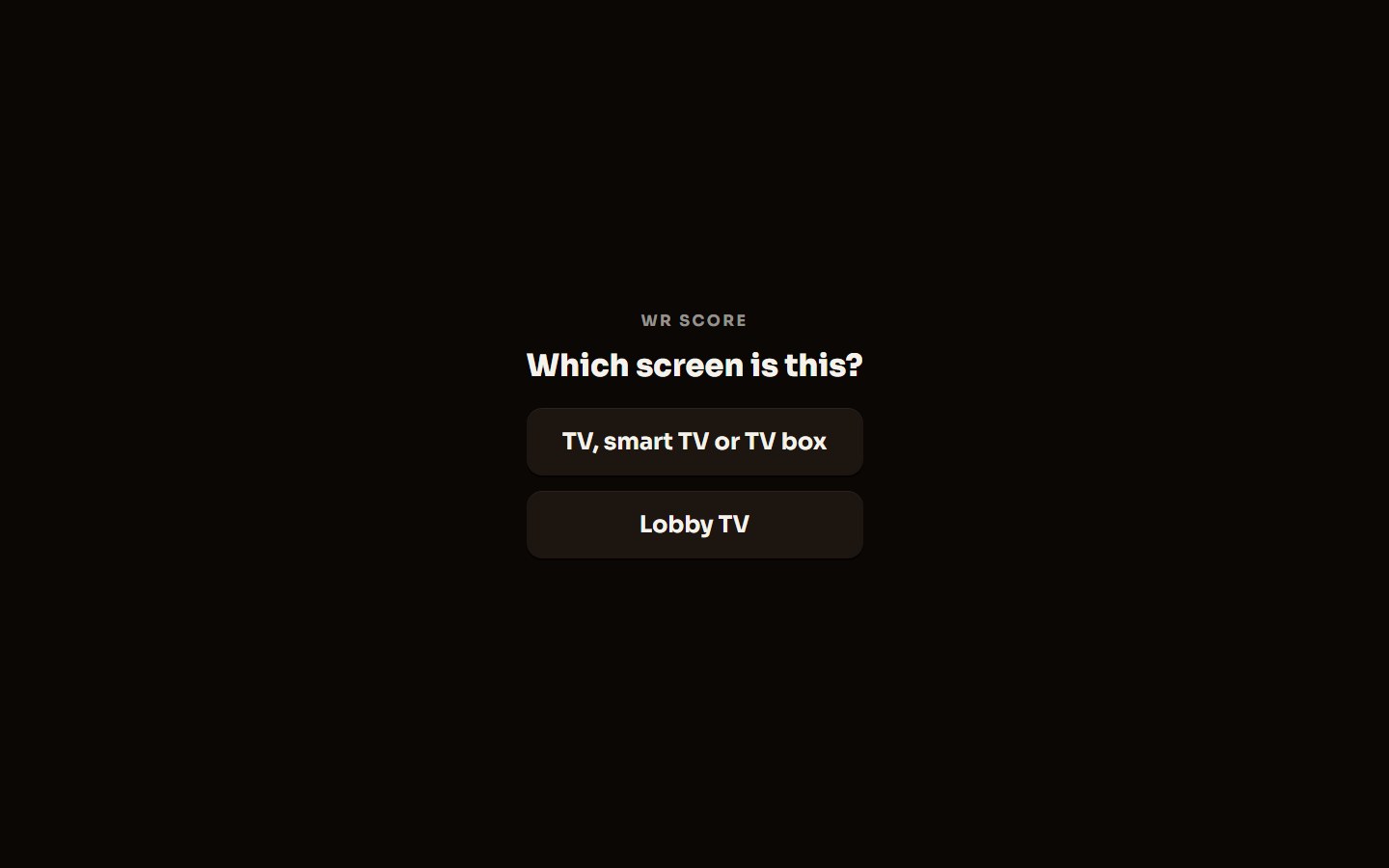
Plug the screen into the PC. On that screen, open a browser at localhost:8080/tv, WR Score's own TV page. It asks Which screen is this?: press the screen's name.
-
Step 6
Fill the screen.
The board fills the browser window. Press F11 so it fills the whole screen. It follows every point and the clock.
-
Step 7
Open WR Score to the hall's network.
At first only this device reaches WR Score. Open Graphics, then Output at the bottom, and press Open Outputs. Switch on Open to the hall's network: each address now has its Copy key. Do this only on the hall's own network, never on a public or guest Wi-Fi, and switch it off again after the event.
-
Step 8
Find the addresses.
Back on Output, Our titles gives one address for everything on air: Programme. Your own titles, our data gives the live score As XML, As JSON, As CSV or As text. Each address is a 1920 × 1080 page with a see-through background. The address carries a key: anyone who has it reads the game.
-
Step 9
OBS.
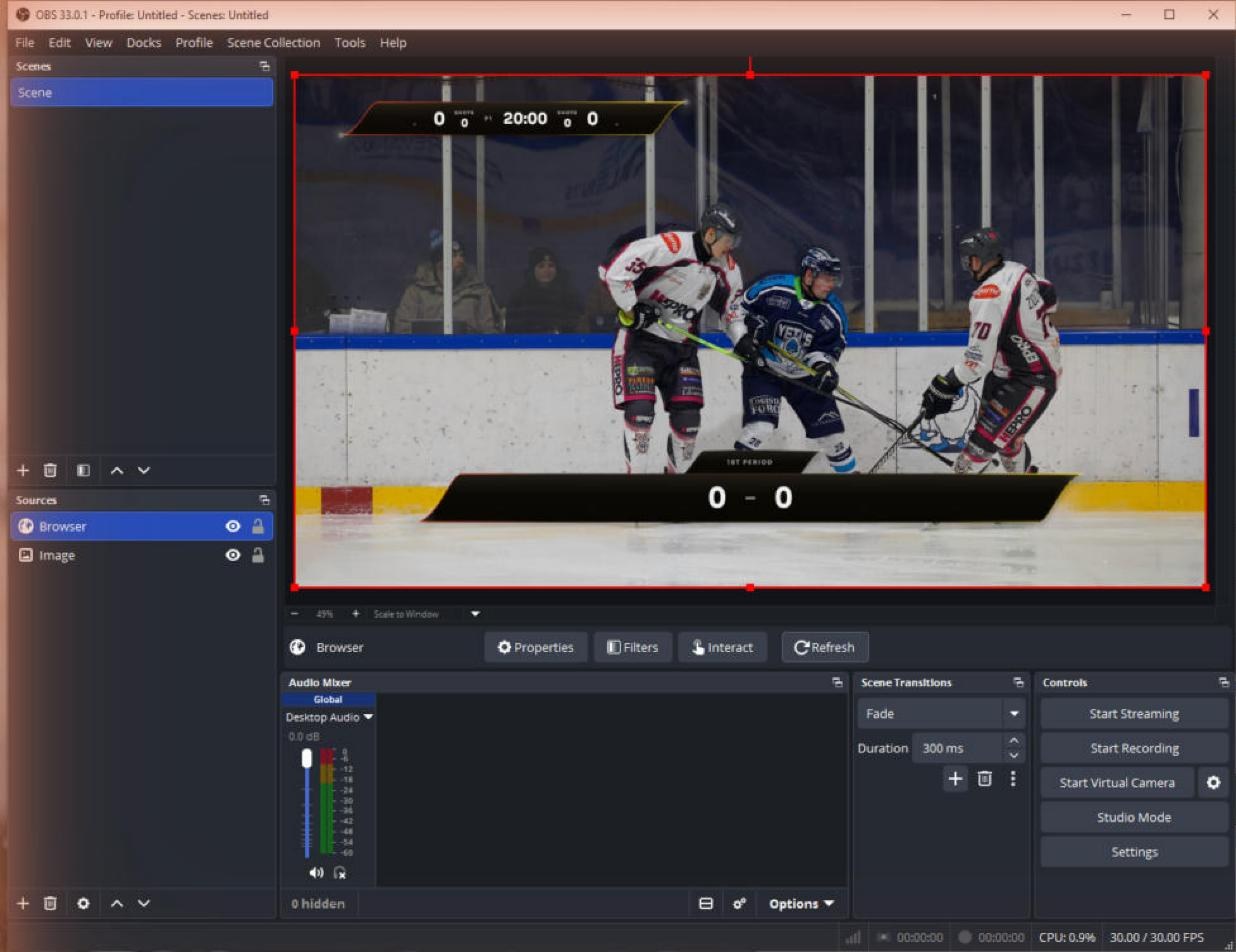
Press Copy under Programme. In OBS, add a Browser source above your camera, paste the address and set it to 1920 × 1080. The titles you put on air in WR Score show over the picture.
-
Step 10
vMix.
Press Copy under Programme. In vMix, press Add Input, then Web Browser, paste the address and press OK. Put it on an Overlay over your camera. For vMix GT titles, copy As XML instead, and add it in vMix's Data Sources Manager.
-
Step 11
Another computer on the network.
On the other computer, open a browser and paste an address you copied. It has to be on the same network as this device.


