All guides
Graphics
Add WR Score's live titles to OBS.
WR Score's titles in OBS, as one Browser source. Or keep your own text sources and let WR Score fill them.

Our titles, as one source.
- In WR Score, open Graphics › Output. For OBS on another device, switch on Open to the hall's network.

- On the first card, Programme · everything on air, press Copy. The address carries a key: keep it to the device running OBS, never a group chat or a post.
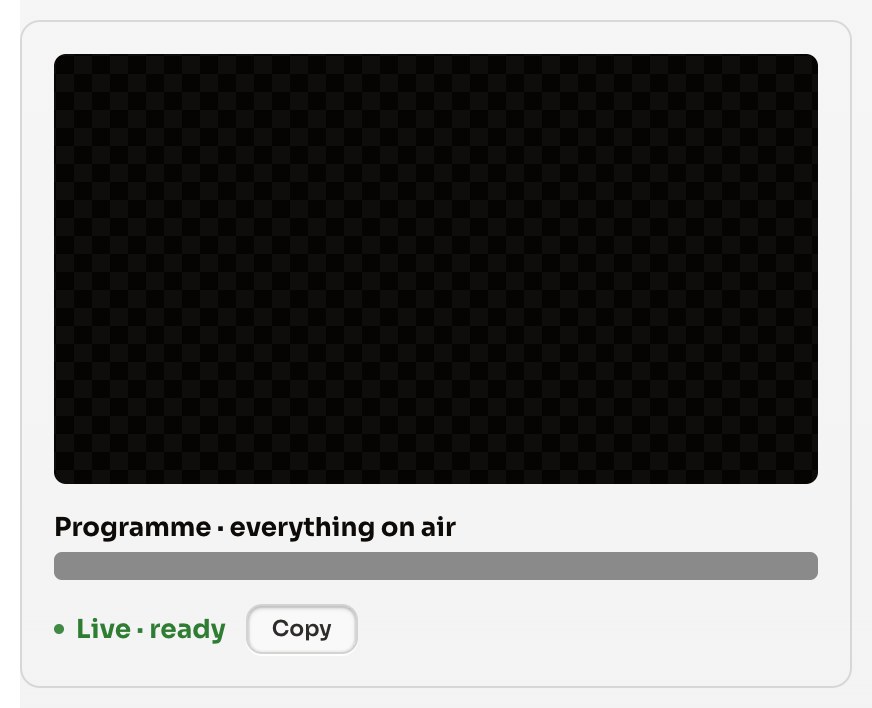
- In OBS: Sources › + › Browser, paste the address into URL.
In OBS, Sources, +, then Browser. Paste the address into URL, and set the width to 1920 and the height to 1080.
- Set width 1920 and height 1080, then OK.
- Put the source over your video in the scene.
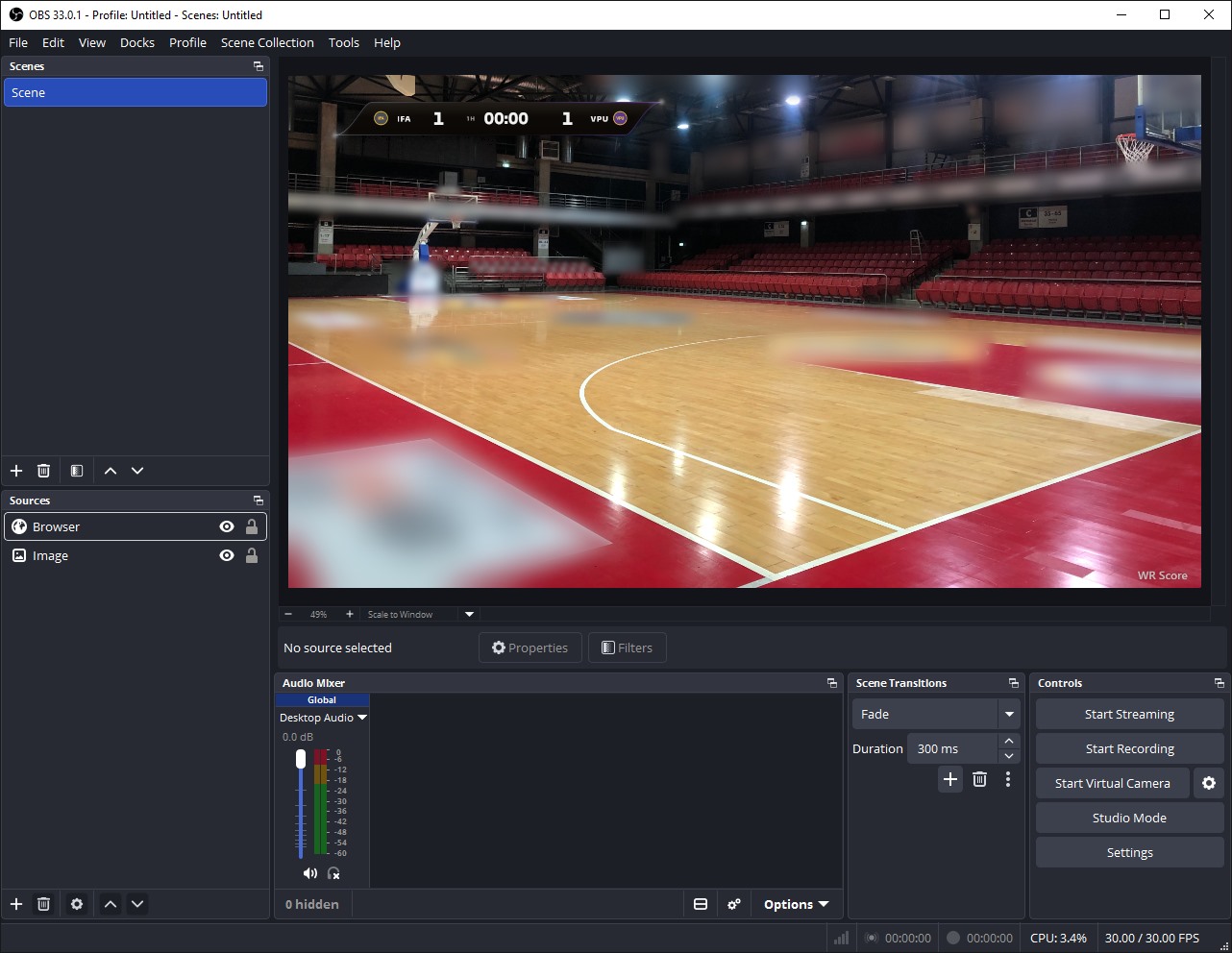
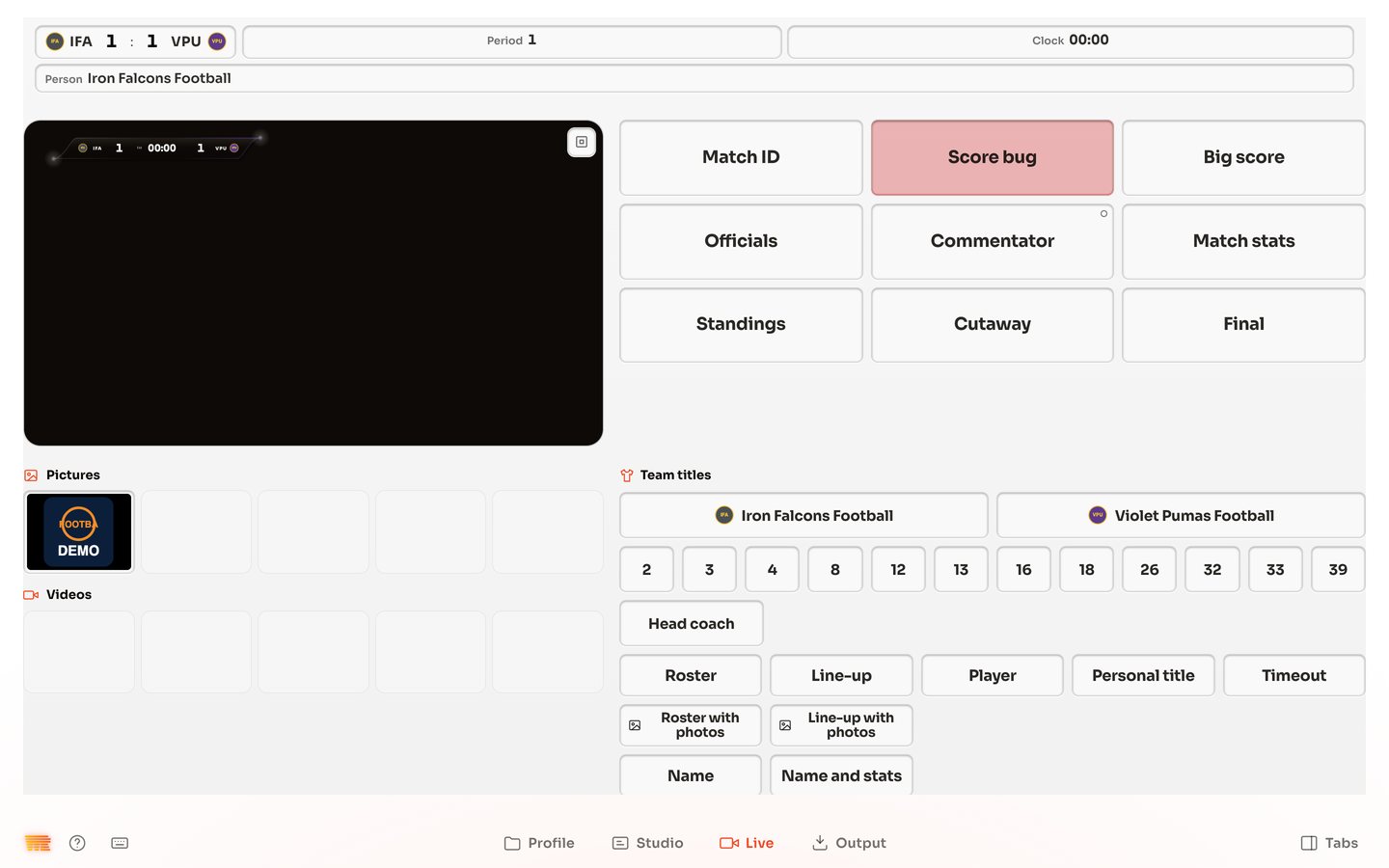
- In WR Score, open Graphics › Live and press a title, such as Score bug: the title plays in OBS.


For smooth titles, tick Use custom frame rate in the source and set the same rate as your stream (50 or 60).
Your own titles, our data.
OBS's text source reads a file, not an address, so WR Score writes one file for each field.
- In WR Score, open Outputs, then File writer.
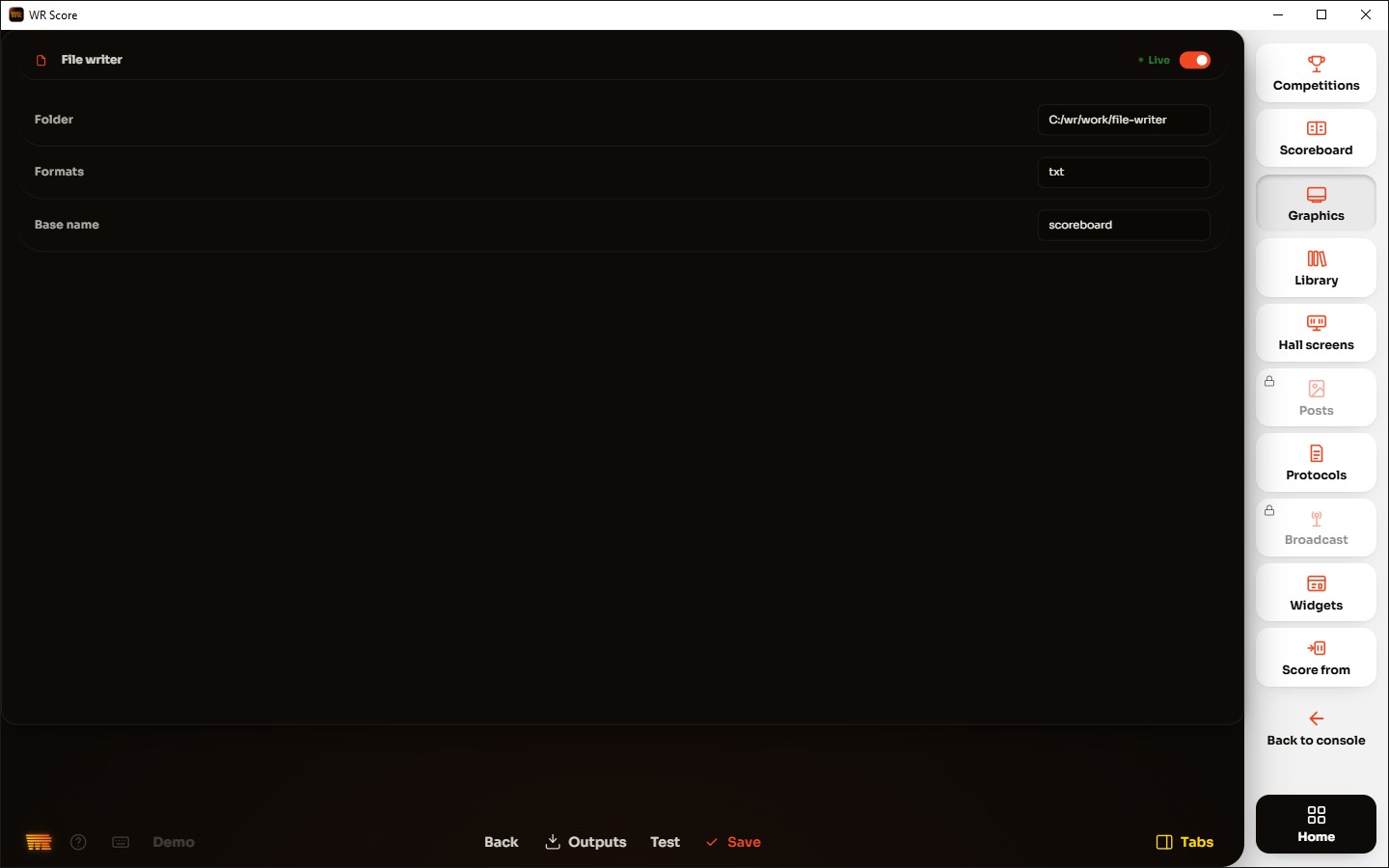
- Choose a Folder and set Formats to
txt, then switch the File writer on. - In OBS: Sources › + › Text (on Windows, Text (GDI+)), tick Read from file, and under Text File pick
scoreboard-score_home.txt.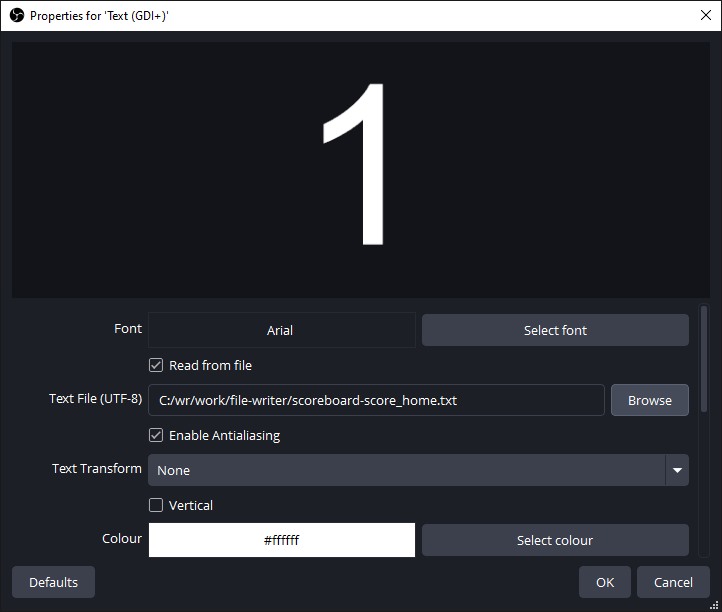
- Do the same for each field you show, such as
scoreboard-team_home_name.txtorscoreboard-clock.txt. - Change the score in WR Score: the text follows.
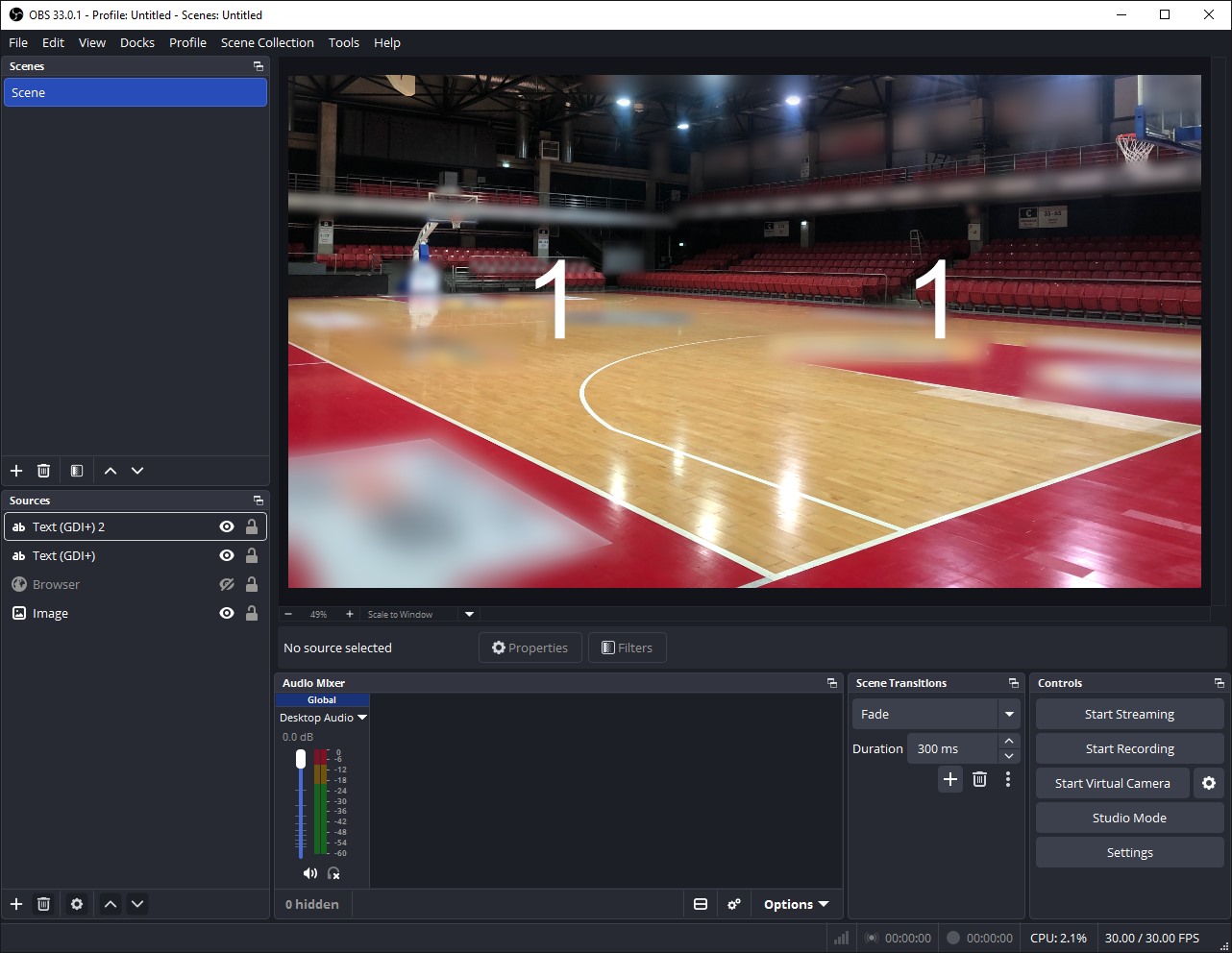


OBS on another device reads the same files from a shared folder.